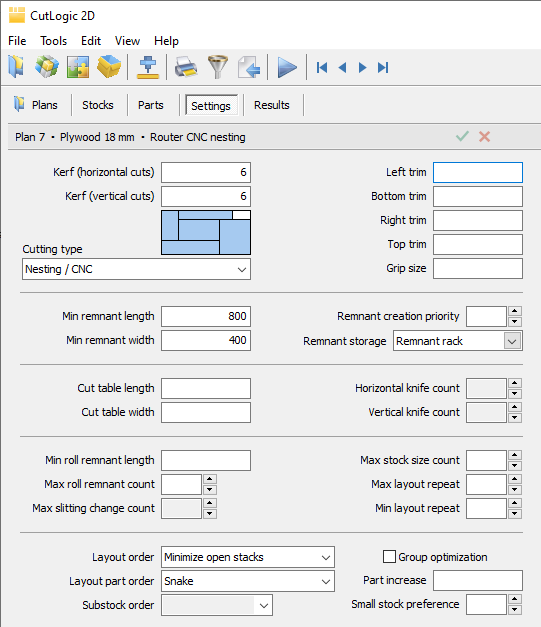
The Settings tab controls cutting types, machine restrictions, the arrangement of layouts, and remnant creation for the selected plan. Start with the cutting type, kerf, and required trims. Apply additional restrictions only where the material or cutting equipment requires them.
Loading cutting settings from Materials
You can store reusable cutting settings for each material under Materials > Settings, for example for different saws, CNC processes, or production methods.
When you create a plan, its material's default cutting settings are loaded automatically. To load another predefined set of settings, press F4 to open Materials > Settings, select the desired settings, and press F4 again.
Cutting settings fields
Kerf (horizontal cuts) / Kerf (vertical cuts)
Width of material removed by horizontal or vertical cuts. Enter values appropriate to the cutting process. For CNC output, the plan kerf must also be compatible with the machine and selected G-code path mode; see CNC Machines and G-code.
Cutting type
Selects the cutting pattern permitted by the optimizer:
•Nesting / CNC - Allows non-guillotine cutting layouts. Suitable for CNC routers, lasers, and other equipment that can cut around rectangular parts. This type provides best yield and shortest total cut length.
•Guillotine - Allows edge-to-edge cuts without a fixed limit on the number of cutting stages.
•3.5 stages / 3 stages / 2.5 stages / 2 stages - Restricts guillotine cutting to the indicated number of main stages. A half stage permits an additional finishing cut used only to complete parts. ver starts with vertical cuts; hor starts with horizontal cuts. Without a direction suffix, the optimizer may choose the starting direction.
•2 stages simple - Uses two-stage cutting with the second-stage cuts aligned across strips, as needed for slitting-and-shearing equipment. Direction-specific variants are available.
Choose a cutting type that your saw or CNC can actually perform. For example, Nesting / CNC is appropriate for most router jobs, while guillotine modes are suited to saws and glass-cutting equipment. A more restrictive cutting type may simplify production but can increase waste.
Left trim / Bottom trim / Right trim / Top trim
Unusable margins removed from the corresponding sides of each stock. Use trims for damaged edges, squaring, or material that cannot become finished parts.
Grip size
Minimum width of material required on both sides of a guillotine cut for gripping or holding. This can be important when cutting glass or on equipment that must securely grip both sides of a cut.
Min remnant length / Min remnant width
Minimum dimensions of a reusable offcut. A leftover piece must meet both limits to be recorded as a reusable remnant when the plan is closed.
Remnant creation priority
Controls how strongly optimization favors creating reusable remnants instead of smaller scraps. Higher values encourage remnant creation; use lower values when storing additional offcuts is not worthwhile.
Remnant storage
Storage location where newly created reusable remnants will be recorded when the plan is closed.
Cut table length / Cut table width
Maximum length of horizontal or vertical cuts allowed by the cutting table or machine. Use these restrictions when a saw cannot make an unrestricted full-length cut.
Horizontal knife count / Vertical knife count
Limits the number of knives or simultaneous cuts in the corresponding direction. The controls are available for cutting types where these restrictions apply.
Min roll remnant length
Minimum length for a full-width remainder to be treated as a reusable roll remnant. This is intended for cutting from rolls; a remaining length that retains the original roll width can be reused as a roll. Enter a non-zero value to switch to roll-cutting optimization.
Max roll remnant count
Limits how many partially used or newly produced rolls can remain in the cutting solution.
Max slitting change count
Limits the number of slitting knife configurations allowed while processing a roll. Set it to 1 when the knives should be set only once for that roll.
Max stock size count
Limits the number of different stock sizes the optimizer can use in one plan. Set to 1 to find the best stock size among several available in inventory or from a supplier.
Max layout repeat
Limits how many times a single cutting layout can be repeated. Can be used to limit panel stacking.
Min layout repeat
Encourages layouts that can be repeated at least the specified number of times, reducing one-off cutting arrangements.
Layout order
Controls the order in which optimized layouts are presented and processed. Minimize open stacks reduces the number of different part sizes that remain open simultaneously during plan cutting. You can also order by stock size or layout repeat.
Layout part order
Controls the order of parts within each layout for supported production outputs. Snake follows a back-and-forth arrangement across the layout. The program normally selects a suitable default when the cutting type changes, such as Snake for nesting and Guillotine for guillotine cutting. You can also order by part size or position.
Substock order
Controls the order in which intermediate pieces are processed during staged cutting. Depending on the machine, choose LIFO, FIFO, or FIFO delayed.
When enabled, parts with the same P-Group value are assigned to stocks belonging to a single S-Group. This helps keep parts of one product or set within the same material batch, shade, or surface pattern. For example, cabinet parts sharing one P-Group can be cut from matching panels rather than mixing visually different production batches.
Part increase
Extra material added to each side of every part. It increases the net cutting dimensions. Edge-banding decrements are also reflected in the calculated net dimensions.
Small stock preference
Controls the preference for smaller available stocks over larger ones. Higher values encourage consumption of small stocks or remnants, where this is useful for inventory management.
Leave optional restrictions empty when you do not need them. Adding too many constraints can reduce the range of layouts available to the optimizer and may increase cost or waste.