Materials organizes available stocks, including remnants, reusable part definitions, and cutting settings by material type. You can load material stocks into plans manually or automatically. New plans inherit the material's default cutting settings.
Go to the Materials tab (Ctrl+2 or File > Inventory > Materials). Press Ins to add a material, enter its Description, and then use the Stocks, Parts, and Settings tabs to define related data.
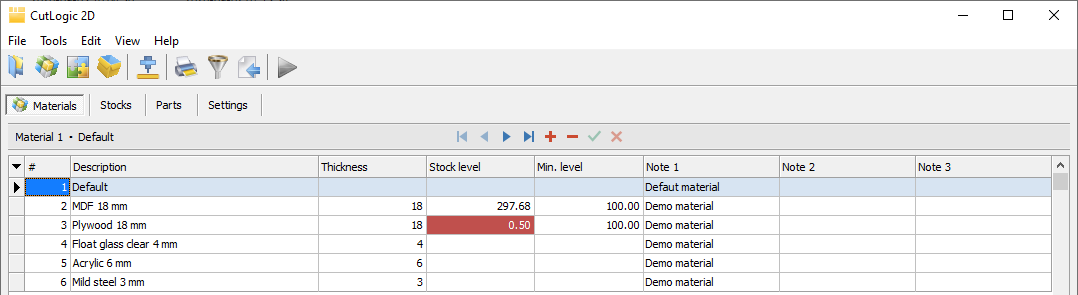
Material fields
•ID - Unique, automatically generated, read-only identifier.
•# - Automatically assigned number, used for default sorting.
•Description - Name or description used to identify the material in plans and inventory.
•Thickness - Material thickness, if relevant. Useful when working with Machines.
•Stock level - Total area of available physical stocks for the material, including reusable remnants. Unlimited-quantity stocks are not counted.
•Min. level - Minimum stock area you want to keep available.
•Above level - Difference between Stock level and Min. level. A negative value indicates a shortage.
•Note 1-4 - Optional additional information.
To show, hide, or reorder columns, select View > Rearrange columns.
When Stock level falls below Min. level, the stock level is highlighted in red. The corresponding material is also highlighted in Plans, helping you identify materials that may need replenishment.
Material stocks
In Materials > Stocks, you can record sheets, panels, rolls, and reusable remnants for the selected material.
Stocks with a fixed Qty represent physical material available for cutting. Stocks with Unlimited quantity are virtual stock sizes - useful, for example, for planning purchases from a supplier - and are not included in physical inventory totals.
Stocks can be assigned to a Storage location. The same physical stocks can also be viewed by location under Storages > Stocks; these are two views of the same inventory records, not separate copies.
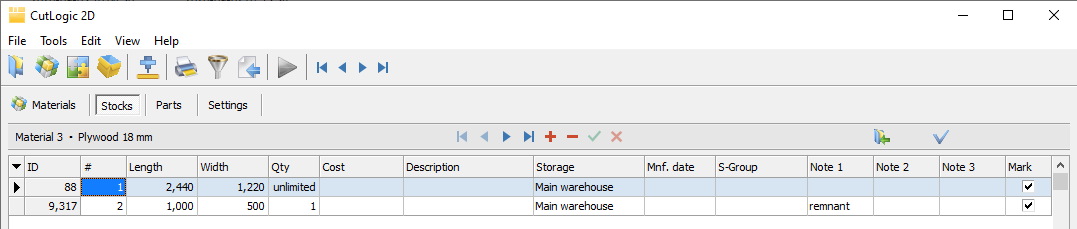
The stock fields are described under Plan stocks. The inventory-specific fields are:
•Date - Date when the stock record was created, including when a remnant was produced.
•Origin ID - Identifies the original stock from which the current stock or remnant originated. Newly entered stocks receive their own ID as the origin; successive remnants retain that origin, making them traceable.
•Plan ID - Identifies the plan in which a remnant was produced.
•Mark - Determines whether the stock is included when marked inventory stocks are loaded into plans.
To load marked material stocks into the current plan, press F4. To load them automatically, configure Tools > Options > Automation. For details, see Loading stocks from Materials.
To add stocks to Materials, enter them manually or import them. During import, you can map the Material field to add or update stocks for multiple materials in a single operation.
Material parts
Use Materials > Parts to store part definitions you use repeatedly for the selected material, such as standard panel sizes or frequently produced furniture parts. This avoids entering their dimensions and other details for each new plan.
The part fields are described under Plan parts. The only inventory-specific field is Mark, which determines which parts are copied into plans.
To copy marked material parts into the current plan, press F4. For details, see Copying parts from Materials.
To add parts to Materials, enter them manually or import them. During import, you can map the Material field to add or update parts for multiple materials in a single operation.
Material cutting settings
In Materials > Settings, you can save several sets of cutting settings for the same material - for example, for different saws, CNC machines, or production methods. Each set has a description, and the Default flag identifies which one is loaded automatically when a new plan is created for that material.
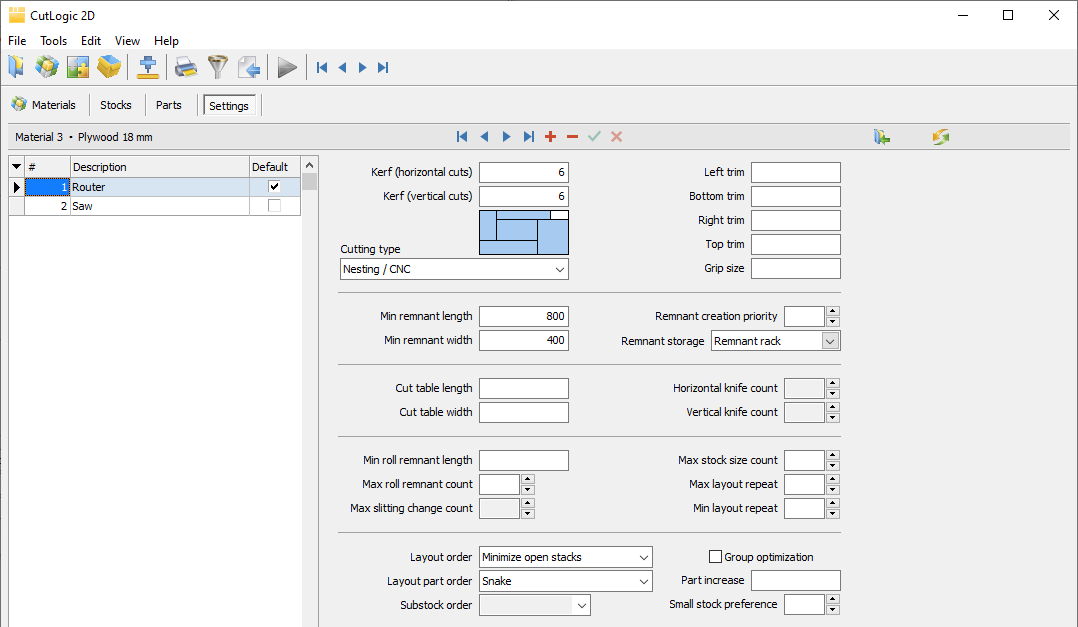
The cutting settings fields are described under Plan cutting settings. The inventory-specific fields are:
•# - Automatically assigned number, used for default sorting.
•Description - Name or description of the saved cutting settings.
•Default - Identifies the cutting settings automatically loaded when a new plan is created for this material.
To load selected material cutting settings into the current plan, press F4. For details, see Loading cutting settings from Materials.
To add cutting settings to Materials, enter them manually or import them. During import, you can map the Material field to add or update cutting settings for multiple materials in a single operation.