Running optimization
When stocks, parts, and cutting settings are ready, press F3 or choose File > Start optimization. The program switches to the Results tab and displays progress and the best solution found so far.
You can optimize several plans together by selecting them on the Plans tab before starting optimization. Each plan is calculated for its own material and settings.
Results tab
The Layouts list shows the layouts generated by optimization. Selecting a layout displays its cutting arrangement, including parts, trims, and reusable remnants.
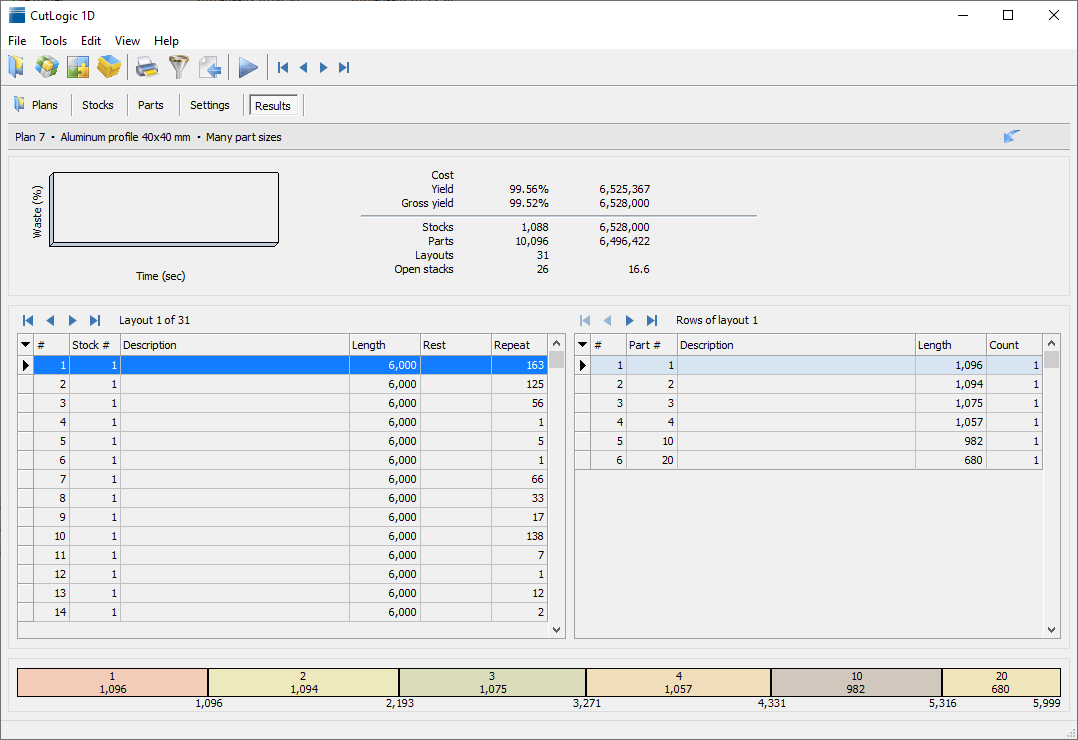
The summary shows overall yield, cost, material use, and other results:
▪Cost - Calculated total stock cost of the cutting plan
▪Yield - Material utilization calculated with produced reusable remnants
▪Gross yield - Material utilization calculated without produced reusable remnants
▪Stocks - Number and total length of used stock pieces
▪Parts - Number and total length of cut parts
▪Layouts - Number of cutting layouts in the result
▪Uncut parts - Number and total length of parts not included in the optimized layouts
▪Open stacks - Maximum and average number of open part size stacks during cutting
Double-clicking a part or remnant can open its associated label report, depending on the configured reports. For printable cutting layouts and labels, see Reports. For machine output, see Export.
Refining optimization (OptiRefine)
OptiRefine lets you select or search for a cutting solution based on priorities other than the lowest stock cost. For example, you may accept a small increase in material use if it substantially reduces the number of distinct layouts, or you may prefer to consume more short remnants already in storage.
After optimization, open the OptiRefine tab. It shows alternative solutions found during optimization and controls for rating them. Click a column header to sort the list by an individual result value.
The available priorities include reducing uncut parts and stock cost, improving utilization, using more available stock pieces (for example, short remnants), preserving a longer final offcut, and reducing the number of different cutting layouts. These goals can compete with each other, so the lowest-cost solution is not always the easiest one to produce.
❖ Choosing a solution
You can select a solution directly from the results list and apply it to the current plan. Alternatively, adjust the priorities to reorder the solutions according to your production needs. Each criterion has a Priority and Best value / Worst value range, which describe how strongly and within what limits that criterion matters.
For example, if you want fewer than 21 cutting layouts, set the Layouts worst value to 21, choose a smaller best value, and give this criterion a high priority. If any layout count up to 20 is equally acceptable, you can set the best value to 20 instead of 1. The solution list is updated as you change the criteria. Select and apply the result that provides the trade-off you want.
If the existing solutions do not meet your requirements, use OptiRefine's re-optimization command to search again using the adjusted priorities. Review and apply the preferred result after the search.
❖ When to use OptiRefine
OptiRefine is particularly useful when reducing setup changes, using short remnants, or limiting the number of different layouts matters as much as material consumption. It does not change the definition of stocks or parts; it changes how available cutting solutions are evaluated and selected.