Label reports identify parts, reusable remnants, and inventory stocks. The main label reports in the Plans section are Labels - Cutting layout parts, Labels - Cutting layout remnants, and Labels - Plan parts. Label reports for stocks are also available in the relevant inventory sections.

The supplied label reports use A4/Letter sheets with 3 columns and 10 rows. You will usually need a report that matches the label format you use, especially when printing on a roll label printer.
To create a label report with the required format:
1.Open Reports in the program section containing the data for the labels.
2.Click Insert (+) on the navigator or press Ins, then choose Create new label report.
3.Enter a Name and select the label Type, such as Cutting layout parts, Cutting layout remnants, or Plan parts.
4.Under Label format, select the Brand, Type, and Unit for your labels. You can choose a predefined format or create your own.
5.Check the format preview and confirm the settings. The report editor opens so you can arrange the fields, text, and barcodes on the label.
6.Save and close the editor, then select the matching printer and paper size for the new report.

❖ Defining a label format
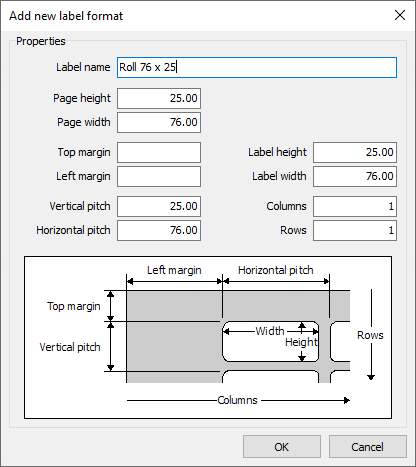
If no predefined format matches your labels, use the + button in the Label format area to create one. Specify the page width and height, label width and height, margins, horizontal and vertical pitch, and number of columns and rows.
Pitch is the distance between the starting edges of adjacent labels, including the gap between them. For example, a label height of 2.5 cm with a 0.3 cm gap requires a vertical pitch of 2.8 cm.
For a roll printer, such as a Zebra, use 1 column and 1 row so that each report page contains one label. Set the page size to match the label size configured in the printer driver. Configure the printer's media and gap detection in its own settings.