Assemblies define the parts needed to produce a product or fulfill a customer order. Unlike a cutting plan, an assembly can contain parts made from several different materials, which can then be copied into existing plans or used to create multiple material-specific plans.
Go to the Assemblies tab (Ctrl+3 or File > Inventory > Assemblies). Press Ins to add an assembly, then enter its identification and descriptive information.
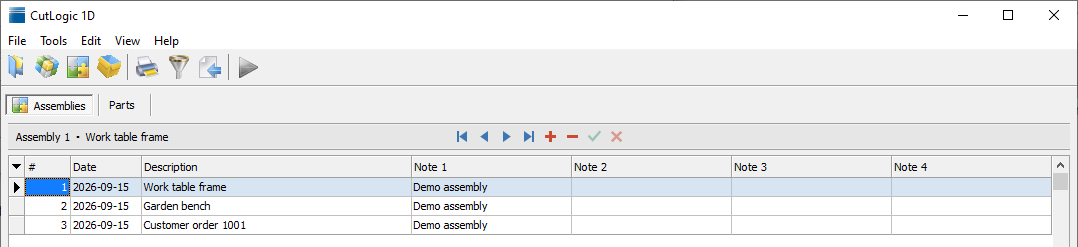
Assembly fields
•# - Automatically assigned number, used for default sorting.
•Date - Assembly date, which can also represent the date of an order.
•Description - Name or description of the product, assembly, or order.
•Note 1-4 - Optional additional information.
•ID - Unique, automatically generated, read-only identifier.
To show, hide, or reorder columns, select View > Rearrange columns.
Assembly parts
In Assemblies > Parts, enter the parts required for the selected assembly. Each part specifies its Material, length, and quantity. The assembly can therefore contain parts from multiple materials in one list.
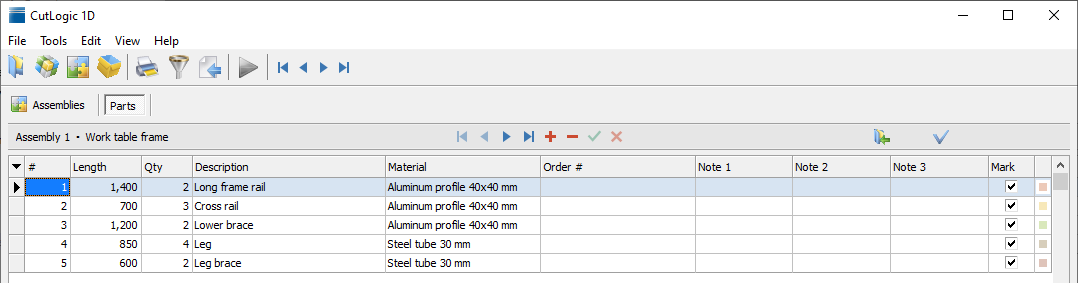
The part fields are described under Plan parts. The inventory-specific fields are:
•Material - Material from which the part must be cut. It determines the destination plan when plans are created in batch.
•Mark - Determines whether the part is selected when copying parts from the assembly.
To add parts to Assemblies, enter them manually or import them. During import, you can map the Assembly field to add or update parts for multiple assemblies in a single operation.
Copying assembly parts to plans
Go to the Assemblies tab, select an assembly, then go to Assemblies > Parts and press F4. Choose one of the following options:
•Copy to current plan - Copies marked parts matching the current plan's material.
•Copy to plans / create plans - Creates or updates a separate plan for each material used by the assembly. Enter a Batch identifier (generated automatically or entered manually).
Enter Repeat to multiply the original part quantities by the number of assemblies required.
To combine several assemblies into one production job, use the same Batch identifier for each. For example, copy 8 Cabinets and 12 Drawers using Batch JOB-1042. Their parts will be combined into the corresponding material-specific plans.
Use a new Batch identifier for each production job to avoid adding parts to previously created plans.